
Above is a diagram of this software's structure. The main screen is showing the home page, but that will change. First, let's look at the main screen.
The main screen contains each page's content. In the picture, it is on the home screen.
The left side of the screen is dominated by the Sidebar. The side bar can be toggled on and off by clicking the button in the top-left corner of the screen.
The Sidebar has links to all of the different pages you can access.
The top bar has two additional buttons in addition to the side bar button. The leftmost automatically redirects you to your profile info page. The right button immediately logs you out of your account.
⬛ - Available to everyone
🟥 - Available to admins only
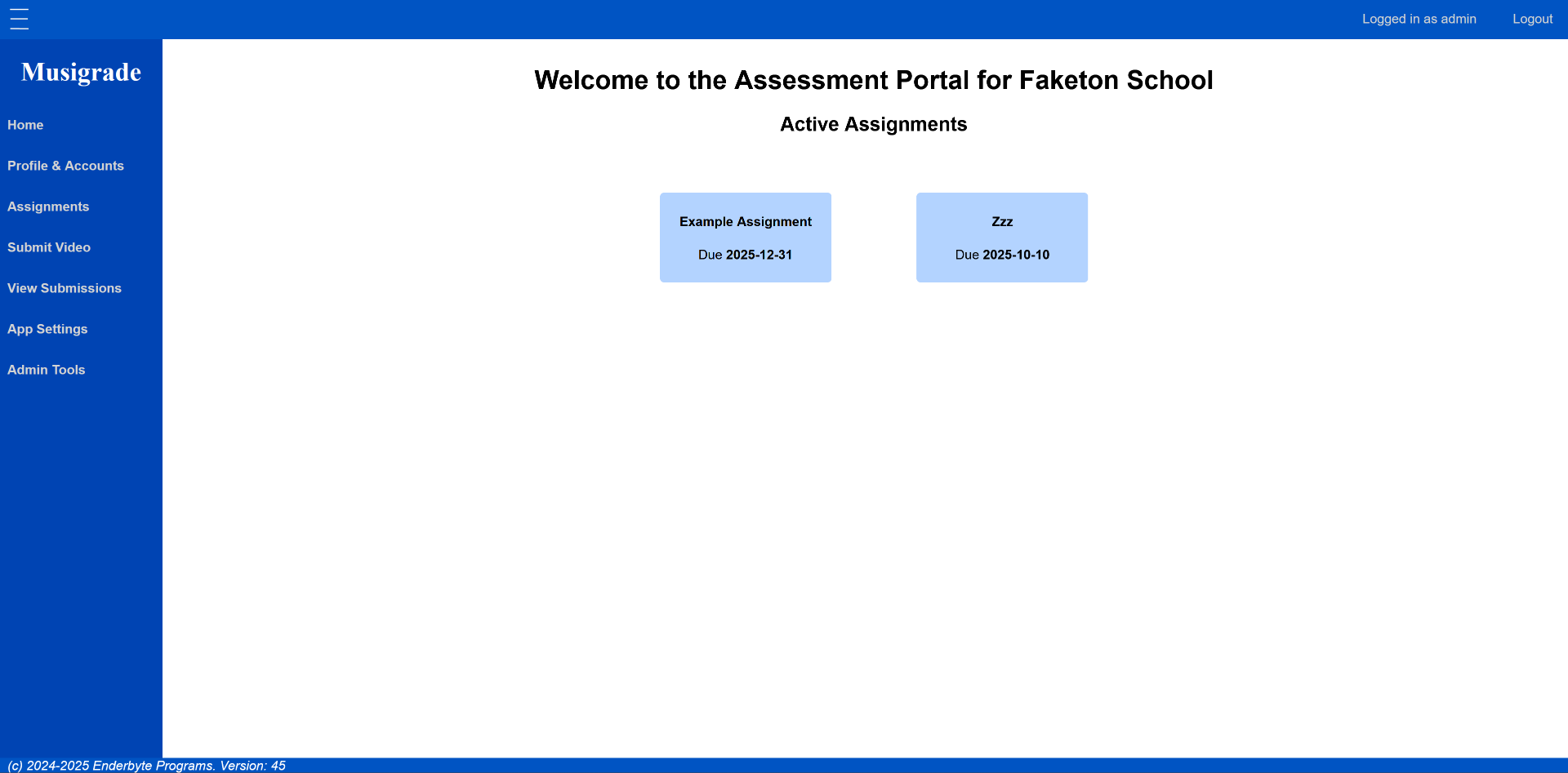
The Home screen is what users will see if they open the app with no particular page. It contains a list of all active assignments.
Each assignment is given a large coloured rectangle. If the user clicks on the rectangle, it will open the upload pop up, with the assignment selected already loaded into the pop up. It is the same as clicking the "Submit Video" button, then selecting the assignment in the select menu inside.
The assignment rectangle contains the title and the due date. If the assignment was already due, but has "Allow Late" enabled, the rectangle will be red, and will still allow submissions. Assignments that have been closed by administrators will disappear from this list.